EXPERT INSIGHT & TRUSTED REVIEWS

EXPERT INSIGHT & TRUSTED REVIEWS

What in Tech is a user-supported site. When you purchase through our links, we may earn an affiliate commission at no additional cost to you. Learn more

The Full Guide to RAM Speeds: DDR4 2400 vs 2666 vs 3000 vs 3200 vs 3600 vs 4000 MHz

DDR4 2400 vs 2666 vs 3000 vs 3200 vs 3600 vs 4000

The Complete Guide to RAM Speeds

All the information and picks needed to find the best choice for your build

DDR4 2400 vs 2666 vs 3000 vs 3200 vs 3600 vs 4000

2025 update: We’ve updated this feature in January to cover some updated recommendations and minor information tweaks.

When you’re looking to build your PC and you’ve arrived at selecting RAM, it can feel overwhelming to know the right GB, MHz, and CL measurements for your needs.

This is why today’s What in Tech feature will be taking you through everything you need to know about RAM, from common speed versus speed questions and which spec matters most in your decision.

We’ve also included the best RAM choices available with different budgets in mind.

This is a long guide, the contents table below is your friend! Look specifically for the questions & recommendations that interest you instead of reading top to bottom!

Table of Contents

What is RAM Speed?

For the average PC builder, the capability of Random Access Memory (RAM) is measured by 3 key fundamentals: frequency, latency, and size (technically, size isn’t speed-related – but for the purpose of establishing what RAM is best for you, we’ll be covering it).

RAM Capacity / Size

RAM size is, as the name suggests, the overall capacity of the memory you’re buying. 4GB, 8GB, 16GB, 32GB and 64GB are the most common sizes right now.

Additional capacity means your PC will have the ability to run more programs simultaneously/switch between them more smoothly.

This is where the name “Random Access Memory” comes in. Your main storage (Solid State Drives, Hard Drives, etc.) are designed to offer much larger storage but are slower than RAM, which is why those drives are store your data and require a more significant loading time when opening them for use.

Once software/games/files are open, they then utilize your PC’s RAM, which is faster than your SSDs/HDDs, so that they can be “randomly accessed” quickly during use.

A common metaphor to explain the difference is that RAM size is almost like your desk, and the more capacity you have, the larger your desk is (meaning you can have more items in arms reach ready to quickly use).

While your hard/solid-state drives are the size of your shelves, drawers, and cabinets; these are used to store most of your items and take a little longer to take out for use on your desk.

Generally more RAM capacity is better, but there are diminishing returns (we’ll get back to that).

RAM Clock Speed / Frequency

Clock speed or frequency is a RAM’s MHz rating (nowadays, most RAM will be in the 2400Mhz to 4400MHz range).

Faster clock speed allows your processor to retrieve data located on your storage drives more quickly. Reducing the time it takes the CPU to access this data increases your performance in real-world scenarios and games.

Clock speed is measured in Megahertz (MHz) which indicates how many times per second your RAM can access its memory (as you probably expect, more is better, but we’ll speak further below about the sweet spot between price and utility).

CAS Latency

The last key part of the equation is Column Access Strobe or CAS latency (often just “CL”) which is integral in understanding RAM speed and often overlooked compared to a stick’s MHz rating.

CL indicates how long it takes your RAM to recognize a command/action (similar to how a monitor has latency between receiving your mouse click and outputting the result visually).

The latency is usually recorded by 4 numbers in the following format: 16-18-19-30 which represents the number of clock cycles it takes for the RAM to register a command. It is the first number from the 4 that is typically used to establish CL. Nearly all popular RAM today is between CL 12 & CL 18 (mostly CL14-16).

We talk more about how to balance latency and clock speed below. But to demonstrate why both are important, think about it: if you have very fast RAM, but the latency is high, it would be like gaming on a high-refresh-rate monitor but each of your actions takes a second to register (a dramatic example, but you get the point…).

DDR4 RAM Speed Vs 1

How much does RAM Speed Matter?

So, we’ve established at a high level what the integral parts of RAM are for your build.

But how much does RAM speed matter?

The short answer is that for business and personal use (web browsing, e-mails, basic software, Netflix, etc), you’ll likely be fine with any 8GB (ideally 16GB) RAM from a reputable manufacturer.

If you’re into gaming or plan on using your build for production work like video editing, game development, or rendering, then the speed can have a more notable impact.

How much does size matter for RAM – 4GB vs 8GB vs 16GB vs 32GB vs 64GB

Of all the specs, size matters the most.

So if your battle is faster RAM vs more RAM (i.e. CL / MHz vs GB), we’ll nearly always recommend the latter option.

That said, RAM size does have diminishing returns. 16GB or 32GB is what we recommend for most users, 8GB for tighter budgets, and 32GB or 64GB for high-end enthusiasts. Beyond that, there isn’t really much use (even 64GB is pushing past the realm of necessity unless you’re doing production work). If this sounds confusing, we detail the best RAM options towards the bottom of this guide.

How much does RAM clock speed matter?

Clock speed matters, but not as much as you may think.

You can build a powerful gaming PC with 16GB 2400MHz DDR4 RAM for instance (which is on the lower side of clock speed). Would it be better to have say, that 16GB of RAM at 3200MHz+? Absolutely! But it’s not a deal-breaker to have lower speeds if your budget is tight or you’re simply not bothered about fine-tuning potential performance/game FPS.

If you’re building a PC purely for basic business and personal use, we would suggest that cheap RAM will suffice for you as long as the size is large enough.

We do however see lots of unanswered questions from users around the difference between X MHz and Y MHz RAM. Which is why further below, you’ll find our comparison list as a quick guide to help you decide between two types of memory.

How much does latency matter for RAM

The most overlooked RAM speed factor, CL, is kind of like clock speed; it matters, but shouldn’t be a huge deciding factor in your PC building decisions.

A higher latency RAM (say, CL18) could still be perfectly decent if its other specs were around 16GB/3200MHz, RAM size is still the most important thing overall.

That isn’t to say that if you see CL12-CL14 RAM, you shouldn’t absolutely go for it if the other specs are decent (especially if you’re building a gaming PC or something for production work). But in the context of price/value, these low latency sticks are often 30%+ more expensive, which we can’t say is worth it unless you are trying to build the all-around most powerful computer possible.

DDR4 RAM Speed Vs 2

RAM Speed Comparison FAQ

DDR3 vs DDR 4 – How much faster is DDR4

DDR4 is essentially the next natural iteration from DDR3. With significantly great size capacity & higher clock speeds, 4 is notably faster in nearly every case (latency is slightly higher on 4, but is made up for with the other specs).

In nearly all cases today, we would say pick up DDR4 RAM. It is overwhelmingly what the current market motherboards/CPUs are best compatible with.

The right question isn’t really “is DDR4 worth it” anymore in terms of speed. Because of its widespread market adoption, prices on this RAM are great. You’ll typically be getting faster RAM with little consequence compared to DDR3.

The only scenario we see DDR3 as worthwhile today is if you’re building an ultra-cheap PC and have specifically found a motherboard/CPU combo that supports 3 and not 4 (we don’t like this from a future-proof perspective and would try to stick to 4, but it could make sense if you need to be as cheap as possible).

DDR4 vs DDR5 RAM?

DDR5 RAM offers 50-100% higher clock speed than DDR4, a slightly lower voltage, and individual RAM sticks that can go up to 64GB each (the max with DDR4 is 16GB).

This sounds great on paper. But at this time, these ultra-high clock speeds/sizes lead to huge diminishing returns in pretty much all PC activity (we talk more about this in our comparison of higher MHz RAMs further below) so in reality, that 50-100% “theoretical” performance increase may not be super noticeable unless you’re building a very high-end machine (and in nearly all cases, the money would be better spent on a better CPU/GPU).

As it stands right now, I would recommend focusing on whichever DDR fits yours motherboard and budget, DDR5 would be great for a high-end build, but even then, a decent DDR4 set would still be more than enough for basically everyone.

What RAM Speed should I get?

The million-dollar question! Unfortunately, the answer isn’t clear-cut, as it depends on your budget and requirements.

A reasonable rule of thumb is to commit to at least 16GB RAM size-wise. Then from there, try to aim for a balance between CL/MHz between CL14 2666MHz & CL16 3200MHz.

To make it easier for you, the bottom of this guide details the best RAM picks today. If you want more autonomy on your choice, we’ve built the RAM speed quick-reference list further below too.

More RAM vs Faster RAM (Size vs MHz/Latency) 

We’ve touched on this already, but it’s worth re-iterating: size is way more important than MHz & latency for nearly all users.

As an example, 2400MHz 16GB RAM will be better than 3200MHz 8GB RAM. The only time we’d pick MHz/latency improvements in this kind of bracket is if your remaining budget can’t jump up to a larger size, but could be squeezed slightly further to accommodate faster sticks.

The other exception to this rule is if you’re buying very large RAM. If you have 32GB in memory, we can’t imagine more will be required for a long time (unless you’re creating a very high-end production machine). At this point, if you still have the budget, it will be usually better to focus on faster 32GB RAM than slower 64GB+ memory.

MHz vs Latency – which is more important for RAM speed?

The difference between MHz and CAS latency value is a difficult question as the best approach is for there to be a balance between these 2 factors (instead of very fast frequency/slow latency or vice versa).

The “sweet spot” for most users today (particularly gamers) with the price in mind is around CL14 2666MHz to CL16 3200MHz.

Now you can fall outside of these balances (e.g. plenty of RAM sticks offer CL18 latency but make up for it with significantly more frequency or lower prices) but we would use that range as the rough spot to go in unless you’re building something high-end and are trying to get extra-low latency and high MHz.

RAM Speed Importance for Intel vs AMD

The main function of RAM speed is to empower your CPU and its ability to retrieve/store randomly accessible data easily.

So your CPU is indirectly an important factor in deciding how much to invest in RAM speed. For example, if you’re buying a high-end CPU, you’ll achieve more value from spending extra on fast RAM (as lower speeds can bottleneck certain CPU operations).

When it comes to the Intel vs AMD builds, it’s complex as the impact on speed depends on the chipset & model version. But as a (mostly reliable) rule of thumb: AMD CPUs/builds benefit more from better RAM speeds than Intel due to the way its memory controllers operate.

This is not to say RAM speed doesn’t matter for Intel CPUs however. We’ve seen many RAM benchmarks show games and various software processes perform notably better with higher frequency/lower latency memory on Intel chipsets.

CL 12 vs CL 13 vs CL 14 vs CL 15 vs CL 16 vs CL 17 vs CL 18

Our comparison list just below focuses on the difference between MHz as we often see reader questions specifically asking about the frequency differences.

But as made clear in this guide, latency is as important as the frequency in deciding RAM speed. 

For example, the difference between CL14 and CL16 is usually more significant than the difference between 3000MHz and 3200MHz. But focussing all on latency (or all on clock speed) introduces diminishing returns, which is why considering both factors is important.

Unfortunately, it’s not a simple balancing act between the two measurements, as you’ll often see companies sacrifice low latency for high speed, or charge a lot more to ensure both specs are good.

We’ve detailed some of the best RAM available today at the bottom of this guide to make it easier for you. But if you do want to decide yourself, we would try to stick to the previously mentioned “sweet spot” of between CL14 2666MHz to CL16 3200MHz for mid-range builds, or you can seek faster/lower latency sticks if you have the budget.

DDR4 RAM Speed Vs 3

RAM Frequency Comparison Quick Reference List

RAM Frequency/Speed Comparison Chart (How to use)

We appreciate that despite all the info/FAQ answers above, many manufacturers produce things in a large array of different frequencies/MHz and you may be struggling to choose between 2 or 3 narrowed options.

We’ve created the below reference list as a quick guide to help you on the most common user head-to-heads based on RAM speed benchmarks.

Don’t feel the need to read every one of these – it’s just for quickly assessing the difference between speeds if you have 2 in mind!

CL / Timing vs MHz / Frequency

The below list assumes that every RAM stick you’re looking at is the same CAS Latency. 

It’s important to note that for computer processes (especially games), while higher RAM frequency and lower CL timings are always better, there is usually a “sweet spot” for mid-range budgets, otherwise, you risk buying RAM sticks with high speed but high CL timings (or vice versa).

For example, CL14 3200MHz RAM would be better for gaming than CL16 3600MHz RAM, so make sure to balance picking between both.

If that sounds complex, don’t worry! Just below the comparison list, we’ve included the best RAM choices depending on your budget level.

RAM Frequency Comparison List

DDR4 2400MHz vs 2666MHz

2666mhz will provide a slight improvement over 2400mhz (particularly in AMD builds).

For gaming, this will translate to a couple of extra FPS in some CPU-intensive titles (i.e. only go 2666MHz if it’s close to the same cost).

DDR4 2400MHz vs 3000MHz

The speed difference between DDR4 2400MHz and 3000MHz still won’t be huge for a lot of gamers/other users but will be a fair bit more noticeable than 2666MHz.

Providing the RAM you’re eying has good latency (and size) you can expect 3000MHz to be the better choice if the price is only 0-10% extra.

DDR4 2400MHz vs 3200MHz

3200MHz RAM is a popular speed for many gaming RAM manufacturers. Combined with a good latency, this will often be a happy medium to ensure you don’t bottleneck a mid-range CPU motherboard combo.

2400MHz would be fine for cheaper builds but we’d recommend 3200MHz if your budget can accommodate it.

DDR4 2400MHz vs 3600MHz

If you are getting a high-end CPU, we’d recommend going with at least 3600MHz to ensure the RAM isn’t indirectly bottlenecking the performance during any processes.

If your budget is tight, you’ll be better off with 2400MHz and spending your money on at least 16GB of RAM size.

DDR4 2666MHz vs 2667MHz

The difference between DDR4 2666MHz and DDR4 2667MHz is non-existent. This is simply a marketing term used by companies who round up/down differently.

Buy whichever one is cheaper (assuming size/latency are the same).

DDR4 2666MHz vs 2933MHz

You may achieve an extra couple of FPS in games that are heavy on CPU requirements, but for the most part, there won’t be much difference between 2666MHz and 2933MHz.

2933 MHz also isn’t as popular for RAM manufacturers so we’d expect 2666 MHz to be more cost-effective (or if you do want higher, look at 3000MHz).

DDR4 2666MHz vs 3000MHz

Similarly to 2666MHz vs 2993MHz, the difference in speeds isn’t wide enough to be that noticeable so only pick up 3000MHz if it’s very close in price or you are keen to min-max gaming FPSs (if that’s the case, you may be better with the higher speeds further below).

DDR4 2666MHz vs 3200MHz

RAM speed increase of 3200MHz over 2666MHz will be a little noticeable/may achieve a few extra FPS on CPU-heavy games (or improve runtimes during certain processes, particularly for high-end processors and especially AMD Ryzen CPUs).

DDR4 2933MHz vs 3000MHz

While the difference between 2933MHz and 3000MHz isn’t non-existent, it’s pretty close to being completely meaningless for most builders (almost certainly <1 average FPS increase in all games at the most). We’d go with whatever sticks are cheaper/have better latency. 

DDR4 3000MHz vs 3200MHz

You can expect a slight, modest speed increase when comparing the difference between 3000MHz and 3200MHz RAM, but don’t expect this to be more than a couple of FPS extra in processor-heavy games. So stick to whichever one is cheaper if all other specs are equal.

The one other thing to point out is that 3200MHz is a little more popular for RAM brands to produce, so your options might be better/more cost-effective.

DDR4 3000MHz vs 3600MHz

With a 20% MHz increase, at this point, you can expect the difference between 3000MHz and 3600MHz to be a little noticeable, albeit not essential if the 3000MHz RAM is notably cheaper (10% or more).

We like speeds of at least 3600MHz if you’re purchasing a high-end CPU (especially Ryzen/AMD) because these can occasionally be bottlenecked by lower frequencies in some operations (but we are min-maxing here, 3000MHz will be fine for most people).

DDR4 3000MHz vs 4000MHz

Is 4000MHz worth it over 3000MHz? Well, you can expect a nice performance jump in a lot of work-related processes (think rendering, editing, and other high-end production).

For gaming, RAM speed benchmarks tend to show around a 5% average FPS increase between these two frequencies. This is a nice jump, but if an FPS increase is your only focus, then the price difference may not be worth it. 3000MHz is enough for gaming on a budget/mid-range build.

DDR4 3000MHz vs 4400MHz

With nearly 50% extra frequency, there are certainly some notable improvements between these two frequencies. While you can expect a good performance increase in games (5% or so for many titles), the real value of going beyond 4000MHz will be in other processes like video editing and rendering.

But in real-world terms, we know a reader’s real question will usually be “is 3000MHz RAM good enough for gaming”. And the short answer is yes, you’ll likely see diminishing returns cost-wise unless you’re running a high-end processor; so 4400MHz will not be worth it for budget/mid-range builds unless the cost is similar (if you want higher 3600MHz-4000MHz will give you similar gaming results).

DDR4 3200MHz vs 3600MHz

If possible, we’d recommend at least 3600MHz if you are doing some high-end production work (rendering, video editing, etc.) and are invested in the time processes take.

For gaming, 3600MHz may be slightly better for CPU-intensive games, but not particularly notable (i.e. not worth paying more money for if FPS is your only focus as we fine 3200MHz is often the best value for RAM).

DDR4 3200MHz vs 4000MHz

Similarly to the difference between 3000MHz and 4000MHz, you can expect something close to 5% increase in many CPU heavy games, whether you think this is worth it is really down to your personal opinion and the price difference (we will say that 3200MHz is the most popular RAM speed today, so often has some good offers from big RAM manufacturers).

The real value for most users will come from if they do high-end work on their setups like video editing and other production. Unless you’re building a premium gaming PC, we don’t think the difference will be too important here.

DDR4 3600MHz vs 4000MHz

As discussed in earlier speed comparisons, RAM speed benchmarks for 3600MHZ, 4000MHz, 4400MHz, and beyond have shown that there begins to be diminishing returns for gaming.

If you have a high-end CPU (especially Ryzen), then you may get your money’s worth, but otherwise, we’d only recommend 4000MHz+ for video editors and intense computing.

DDR4 3600MHz vs 4400MHz

For gaming, the difference between 3600MHz and 4400MHz is small for most titles as there is diminishing returns at this frequency level for most titles (the only exception being if you’re running a very high-end AMD CPU to avoid any slight bottlenecking) therefore we’d only say 4400MHz is worth it if you are focussed on making your high-end production/editing work more efficient.

DDR4 4000MHz vs 4400MHz

We wouldn’t consider the difference between 4000MHz and 4400MHz RAM for gaming important (unless you really want to future-proof RAM, but we’d say it would be more cost-effective to buy cheaper and upgrade to DDR5 when it is popular in a few years).

For video editing, rendering, and other production work, you can expect to see a little jump in performance and it may be worth it if the price increase is in the realm of 10-15%.

DDR4 4400MHz vs 4600MHz

A difference of less than 5% frequency at these high levels is really not that integral to any performance, whether you’re building a gaming rig or a high-end production setup.

4600MHz is only worth it if it is very close to the same price as the 4400MHz sticks.

DDR4 RAM Speed Vs 4

The Best RAM for Gaming and Other Builds

Feeling overwhelmed by all of this detail? Don’t worry, here’s our quick list of the best RAM picks available today for varying budgets.

CORSAIR Vengeance DDR5 RAM 32GB

Best Overall RAM: CORSAIR Vengeance DDR5 RAM 32GB

Great value, decent speeds, good size and from one of the best RAM brands, this Corsairset ticks all the boxes we think a gaming (or mid-range production) PC will need.

Corsair VENGEANCE LPX DDR4 RAM

Best Budget RAM: Corsair Vengeance LPX 16GB

At a very impressive value point, this Corsair RAM will suit most gamers on a budget who will be better placed spending extra on more expensive GPU/CPUs where possible.

CORSAIR VENGEANCE RGB DDR5 RAM 64GB

Most Powerful RAM for High-End PCs: CORSAIR VENGEANCE RGB DDR5 RAM 64GB

At an impressive 6400mhz, CL30 with 64GB of size, the Vengeance is a fantastic offering for high-end gaming or production builds.

Yes, you can get technically do better than this, but diminishing returns will start to kick in more dramatically, our pick is based on still providing decent value despite this being an expensive set of memory.

V-Color DDR4 8GB

Cheapest RAM: V-Color 8GB DDR4 RAM

Technically you can go cheaper with 4GB, but even if your build is just for business and personal use, we would recommend this great-value V-Color 8GB RAM as a minimum.

Being a single stick, you’ll also have the opportunity to add a second 8GB piece at a later date. Even at its small size/slightly lower speed, this memory will get a budget gaming build off the ground (if you’re very tight on money, it’s probably going to be best to invest in a better CPU/GPU and upgrade your memory later).

Final Word

We’ve been over a lot of queries in this feature, and appreciate that learning about how to compare MHz, latency, and GB speeds can be a lot to take in.

So while we did make this guide to inform readers and give you the ability to maximize value from your RAM purchase, we’ll reiterate: the most important aspect is size.

If you buy one of our top picks above, or pretty much any DDR4 16GB+ RAM set, you will still get decent performance. So hopefully you’ve got what you need to know, but if RAM speed stresses you out, go with one of our recommendations or pick a popular 16GB gaming RAM choice, and move on to stressing about GPUs, CPUs, motherboards, and PC cases instead!

What's Next?

About the author

Picture of Kaelum Ross
Kaelum Ross
Kaelum Ross, BSc is the Lead Writer at What in Tech and a leading authority in PC hardware and software. With a career as a senior IT professional, Kaelum has led multi-million dollar projects covering everything from bespoke software development to complex Windows hardware upgrades. Today, Kaelum uses his expertise to serve What in Tech's readers and has been featured in numerous global publications including New York Magazine and Lifewire.

The Best Amazon Black Friday Tech Deals 2020 Guide​

Amazon Black Friday Tech Deals

The Best Amazon Black Friday Tech Deals 2020 Guide

30/11 Update: We’ve just added our favorite Cyber Monday deals, check them out below.

28/11 Update:
Well that was fun! We’ve left the deals up that still seem to be floating around this weekend and will be posting the best Cyber Monday deals on 30/11, stay tuned!

_

It’s finally here!

One of the best times of the year for tech shoppers to buy their laptops, PC parts, and Christmas gifts is on.

This page will be our feature to guide you through the best Amazon Black Friday tech deals, Cyber Monday, and all the other questions you may have at the bottom of the page.

We’ve included some quick links to relevant spots to keep an eye on, but our absolute favorite deals will be updated live on this page, so bookmark and return when you’re on the lookout.

Quick Amazon Tech Links for Black Friday / Cyber Monday

Amazon Black Friday PC Parts

Best Cyber Monday Amazon Tech Deals

Best Amazon Cyber Monday PC Case Deal: Thermaltake V150

Already one of the best budget PC cases at its normal price, getting a further 20% off is a fantastic offer if you can’t afford our more premium chassis picks.

Best Amazon Cyber Monday RAM Deal: Sabrent 1TB Rocket NVMe 4.0 Gen4 PCIe M.2 Internal SSD

Quite possibly the fastest M.2 SSD on the market right now is on 50% off. 

Yes, this is a pricey investment for a storage upgrade, but we think you’ll be wowed by what this can accomplish when using your OS and popular software.

Best Amazon Cyber Monday RAM Deal: Crucial RAM 16GB DDR4 2666 MHz

RAM can feel particularly pricey these days, so to see a 16GB upgrade at this price feels like a blessing! This is the best price we’ve seen for 16GB 2666 MHz and is a great time to upgrade if you need to.

Best Amazon Cyber Monday Headphone Deal: Sony WH1000XM4

Quite simply one of the most amazing products on the tech market today. I own a pair of these myself and after loving the build, sound, and noise-cancellation quality so much, have forced endless friends and family to buy them too!

They’re more than worth the full price, so to get this at a significant reduction is a steal; I can’t recommend these enough.

Best Black Friday Amazon Tech Deals

Best Amazon Black Friday Gaming Mouse Deal: Logitech G502 Hero

We’re legitimately surprised that this mouse is on 50% off its list price at the time of writing because it’s already one of the best and most popular gaming mice available. This is an excellent time to upgrade if you’re on the lookout for one.

Best Amazon Black Friday Headphone Deal: Beats Solo Pro Wireless

fantastic reduction in price on these Beats headphones. 

With great quality, wireless range, and noise-cancellation; at this price point, there isn’t much else competing with them.

Best Amazon Black Friday Alexa Deal: Echo Dot 3rd Gen

A great price to add 1 or more of these to your existing (or new) Alexa home setup.

When does Black Friday start?

Black Friday starts on November 27th and is expected to commence at 00:01 PST.

The deals will then appear throughout the day until midnight.

It’s important to note however that many of the best Amazon Black Friday tech deals will occur earlier (some of them are even available now! Our favorites are below).

When does Cyber Monday start?

Cyber Monday will start on November 30th and is similarly expected to commence at 00:01 PST.

Cyber Monday vs Black Friday Amazon Tech Deals

“Does Cyber Monday have better deals for tech?” is a question asked every year.

The short answer is usually yes, but not for everything.

Black Friday is historically the largest shopping event, with large (often newer) products going on sale on Amazon.

With our focus on tech, as you may expect from the name, Cyber Monday does tend to pack an extra deal or two.

However, we will say that for plenty of items, the lowest price they reach is also on Black Friday (or even the earlier November deals Amazon tends to run).

So with that said: Cyber Monday may be best for tech, but if there’s a specific item you have an eye on that has a Black Friday deal before Cyber Monday, it’s still a great time to pick it up (especially if you’re worried about stock levels).

What's Next?

About the author

Picture of Kaelum Ross
Kaelum Ross
Kaelum Ross, BSc is the Lead Writer at What in Tech and a leading authority in PC hardware and software. With a career as a senior IT professional, Kaelum has led multi-million dollar projects covering everything from bespoke software development to complex Windows hardware upgrades. Today, Kaelum uses his expertise to serve What in Tech's readers and has been featured in numerous global publications including New York Magazine and Lifewire.

The 6 Best Tools for Building a PC (and Extras)

Best tools for building PC

The 6 Best Tools for Building a PC (and Extras)

So you’ve finally got your parts selected…

You’re ready to plunge into the world of PC building…

Well, just one more step before you order your build: checking you have the right tools!

Today’s feature goes over what tools/extras you may need for your next PC (and the best variant of them with cost in mind).

Note: You do not need every item on this list to build a PC. Many of these are optional but will help certain builders (we’ll make it clear in each section).

Main Picks

Extras


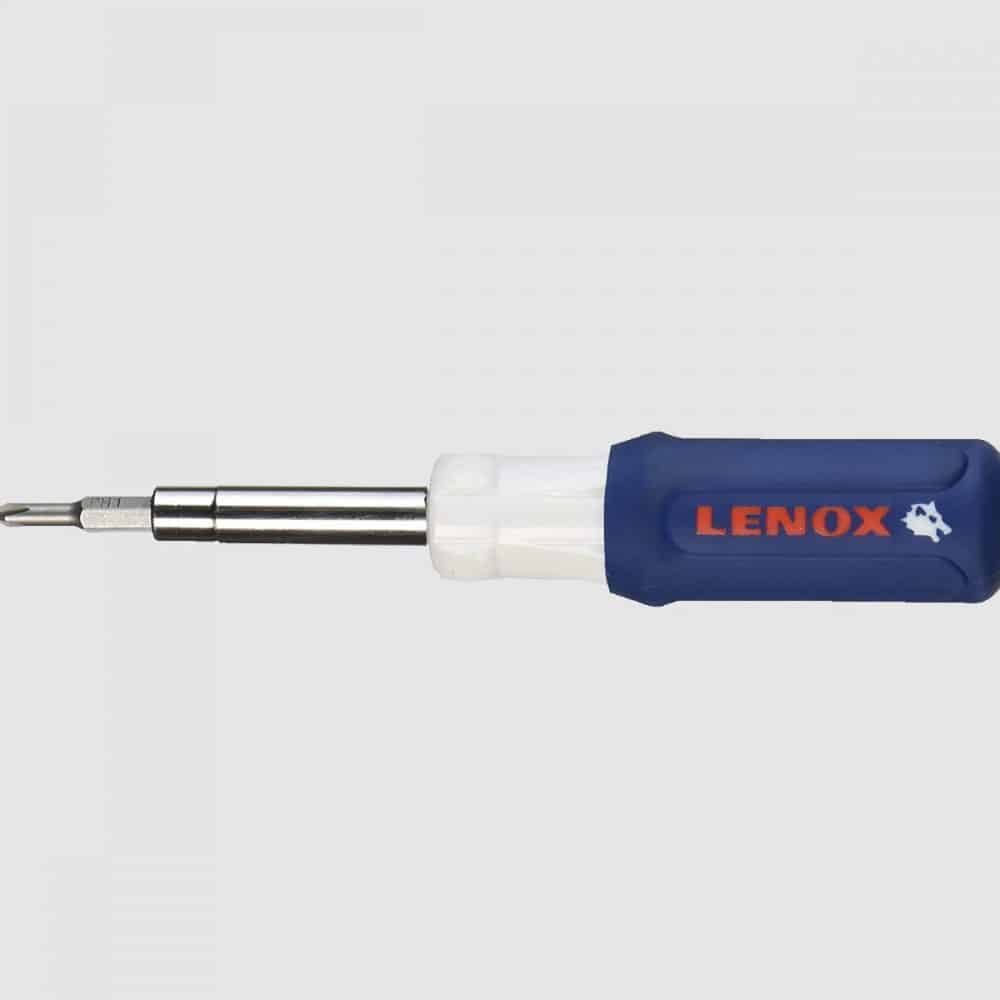
Best Tool for Building a PC: LENOX 6-in-1 Screwdriver

If there’s one item to add to your basket before your PC purchase, it’s this fantastically cheap multi-purpose screwdriver.

While I know there’s a lot of people out there looking for the best screwdriver set for computers and PC build, the truth is buying a full toolkit is overkill.

What kind of screwdriver do you need for PC building?

A no 2 Philips screwdriver will cover 90% of what most builds need.

That said, it’s helpful to have a no 1 (smaller head) variant for the occasional screws that are a little tighter.

I like the LENOX because it is (surprisingly) in the same price bracket as a single-type screwdriver, yet comes with 6 different heads (without a reduction in quality).

Overall, this one is a bit of a no-brainer.

Not only is it great to have the 2 Philips head types when setting up your PC, but getting the other 4 screwdriver types is a nice addition for future DIY projects given they come at no cost.

At its low price-point, this is without a doubt the best tool for PC building.

Best Anti-Static Wristband for PC Building: Rosewill Anti Static Wrist Strap

An anti-static wrist strap is a cheap, easy way to ground yourself and remove the risk of static interference when handling your pricey PC parts.

I recommend the Rosewill band – > The cheapest on the market that has widespread usage. There’s no need to overcomplicate a simple product, this is all you need.

Do you need an anti-static wristband to build a PC?

The short answer is no, but it’s recommended.

This is a popular product amongst tech builders for a reason: for a tiny price, you are avoiding the risk of static damage to items you spend big money on.

You’ll then have the band for all future upgrades/builds.

Alternatively, you can ground yourself manually every few minutes; which will cover most of the risk if you’re careful.

(There’s already good resources on how to ground yourself when PC building).

But as far as I’m concerned, the tiny spend is worth the ease of building and peace of mind.

Best Cable Ties for PC Building: Hmrope 100pcs Cable Zip Ties

Many PC parts come with cable ties (most often the PSU or PC case).

If you know for sure that some will be included for you, this may be unnecessary.

That said, you can never have too many cable ties for organization.

The various SATA/Power/Misc cables you’ll be working with will quickly disorganize your build if you don’t have these handy.

The Hmrope ties are the cheapest available online and still do the job as effectively as its pricier competitors for PC builds

Best Thermal Paste for PC Building: Noctua NT-H1

Thermal paste is an important part of the PC building process.

It is what allows the smooth transition of heat from the CPU to the accompanying CPU cooler. Do not start your PC without first having applied thermal paste.

Most CPUs or stock coolers usually come with enough paste for at least one application.

It’s worth checking what with the one you’re purchasing. If it is included then it will likely do the job just as well as Noctua so this is completely optional.

I (and many other builders) like to pick up some paste just in case:

  1. Thermal paste isn’t included with your CPU
  2. You need to re-apply the paste after a sub-par first attempt

You do not need to buy an expensive/high-volume tube of paste. 

The Noctua NT-H1 paste ticks the boxes perfectly and is, in our opinion, the best thermal paste for PC building today (being one of the cheapest on the market, with enough volume for a few applications and widely used/available).

Extras

The above 4 items are the best tools for building a PC. We’ve just included a couple of extra optional small items that we think may be valid for some of your setups.

Best USB Hub for PC: Anker 4-Port USB 3.0 Hub

I recommend a USB hub for two types of people:

  • Those with limited USB hubs on their PC (particularly likely for smaller form factor PC cases)
  • Those (like myself) who like to have more easily available ports on their desk – as it can be a pain to reach behind the PC if your front I/O ports are out.

This Anker offering is one of the best USB hubs for a PC setup.

It ticks all the right boxes: low in price, sturdy/attractive design, wide usage, and USB 3.0.

You can get a product with more ports if preferred, but we will need to fork out more for a good product (and larger numbers of USB ports demand more power, so are more often accompanied by a mains power requirement to allow you to use for charging also).

Best Headphone Stand for PC Users: NZXT Puck

Last but not least is a unique product from one of the best PC Case brands in the game.

The NZXT Puck is essentially a magnetic stand to stick to the side/front of your PC case (or another magnetic surface if your PC isn’t).

It sounds simple, but it’s a surprisingly effective/aesthetically pleasing way of storing your headphones.

And the puck is actually in two parts, so you can choose to separate them and use the other piece for say, a game controller.

The slight crevice around the side of the puck also allows you to have some neat cable management for your accessories on the front side of your PC (something that is usually lacking in setups).

It’s by no means required for your build, but neatly storing your expensive PC headphones is something that is often overlooked, so a product to do it stylishly is one we’d recommend.

What's Next?

About the author

Picture of Kaelum Ross
Kaelum Ross
Kaelum Ross, BSc is the Lead Writer at What in Tech and a leading authority in PC hardware and software. With a career as a senior IT professional, Kaelum has led multi-million dollar projects covering everything from bespoke software development to complex Windows hardware upgrades. Today, Kaelum uses his expertise to serve What in Tech's readers and has been featured in numerous global publications including New York Magazine and Lifewire.

Amazon Prime Day 2020 – Tech Deals Guide

Prime Day Tech Guide

Amazon Prime Day 2020 Tech Deals Guide

Well that was fun!

Thanks for checking in to our Prime Day 2020 guide. Prime Day is now over until 2021, so come back to this page then when we’ll update it with the best deals next year.

Best Prime Day Amazon tech deals

Prime Day is wrapped up now until 2021, we’ll see you then!

Do you need Amazon Prime to get Prime Day deals?

Yes, but in 2020, Amazon offers new users a 30-day free trial (check the links below to see if the offer is still available).

Should you wait for Black Friday/Cyber Monday for tech deals?

Although Black Friday and Cyber Monday are historically larger events, we don’t expect many tech users to gain enough of a discount to warrant waiting several more weeks.

When you read forums and listen to Reddit posts, there will always be someone to say “if you just wait X months, it will be cheaper”.

But this is always the case with every sale! You can always wait longer and get things cheaper.

But Prime Day will undoubtedly be a great chance to pick up good tech deals, so if you want something soon, we recommend making this your time to do it.

What's Next?

About the author

Picture of Kaelum Ross
Kaelum Ross
Kaelum Ross, BSc is the Lead Writer at What in Tech and a leading authority in PC hardware and software. With a career as a senior IT professional, Kaelum has led multi-million dollar projects covering everything from bespoke software development to complex Windows hardware upgrades. Today, Kaelum uses his expertise to serve What in Tech's readers and has been featured in numerous global publications including New York Magazine and Lifewire.

How to Limit or Turn Off Auto Updates on Steam – Quick Guide

Steam auto updates screenshot

How to Limit or Turn Off Auto Updates on Steam

Want to stop a Steam update that will inevitably slow your internet speed?

Perhaps a new “fix” is known to crash the game and you want to hold off until the devs resolve?

Whatever the reason, we’ve created a fast guide on the options you have to disable auto-updates on Steam.

Quick note before we start: Steam auto-updates by default for a reason. Which is why they make it close to impossible to fully stop.

For the most part, new versions will fix issues or add features, so only disable updates if you have a reason to (we only recommend this for single player games).

Table of Contents

How to Turn Off Auto Updates on Steam for Specific Games

To stop Steam from updating games one at a time, start at your Steam library and right-click the game in question and click “Properties”.

Once the window opens, go to the “Updates” tab and you’ll see an “Automatic updates” dropdown box.

Set it to “Only update this game when I launch it” as below.

Steam does not give you the option to completely disable auto-updates so this is the best you can do within the app.

If you want to then play a Steam game without updating, your best option is to play in offline mode.

How to Turn Off Auto Updates on Steam for All Games

Unfortunately, there isn’t a supported way to do this.

But below are the closest methods found.

Option 1 – Download Steam Games at Certain Times

If you’re doing this because you don’t want games downloads affecting your broadband speeds, you can schedule Steam updates.

Click “Steam” in the top left corner and then “Settings”

Then go to the “Downloads” tab and you will see an option to set a time window for Steam updates as below:

If you really want to ensure Steam doesn’t update games, you can set the schedule to something like 4-5am and then make sure Steam is off or in offline mode during that period/when you play games.

Option 2 – How to Limit Steam Download Speeds

Another effective way to deal with Steam slowing down your internet is to set a Steam Bandwidth Limit.

Going to the same settings menu as option 1 above (Steam – > Settings – > Downloads) you can easily set a download limit for Steam as below:

How to Access Previous Versions of a Steam Game

Some games allow you to play older versions on Steam.

To do this, once again right-click on a game in your Steam library and click “properties”.

Go to the “Betas” tab and click on the dropdown box.

If there are other versions available, simply click on the one you want and Steam will download that version.

(Our example uses Super Meat Boy, which uses an older version for speedrunners).

About the author

Picture of Kaelum Ross
Kaelum Ross
Kaelum Ross, BSc is the Lead Writer at What in Tech and a leading authority in PC hardware and software. With a career as a senior IT professional, Kaelum has led multi-million dollar projects covering everything from bespoke software development to complex Windows hardware upgrades. Today, Kaelum uses his expertise to serve What in Tech's readers and has been featured in numerous global publications including New York Magazine and Lifewire.

How to Check Your Steam Purchase History

Check Steam Purchase History

How to Check Your Steam Purchase History

“When did I buy that game?”

Whether you’re just curious or trying to find recent purchases for a refund, Steam has a very simple way to check when you purchased a game (and how much it cost).

Check Steam Purchase History Steps

Step 1 – Login to your account and wait for the main screen to pop up.

Once there, click on your profile name in the top right corner and a small drop-down box will open below it as per the screenshot. Click “Account details”.

Steam Purchase History 1

This will take you to your main account details page.

From here simply click “View purchase history”.

And that’s it! You should then see a list of your entire purchase history since the account started.

This will show you when you got a game, how much it was and any refund details if applicable (also covers Steam wallet purchase history).

Can’t view Steam purchase history?

You should be able to see every game attributed to your account no matter how old on this menu.

If that’s not the case and you need to know, your best bet is to contact Steam support.

See total amount spent on Steam

If you want to depress yourself by knowing how much money you’ve spent in total on Steam, they added a feature for this a little while ago.

Just go to this link and log in – don’t say we didn’t warn you!

What's Next?

About the author

Picture of Kaelum Ross
Kaelum Ross
Kaelum Ross, BSc is the Lead Writer at What in Tech and a leading authority in PC hardware and software. With a career as a senior IT professional, Kaelum has led multi-million dollar projects covering everything from bespoke software development to complex Windows hardware upgrades. Today, Kaelum uses his expertise to serve What in Tech's readers and has been featured in numerous global publications including New York Magazine and Lifewire.

Should You Buy or Build a Gaming PC in 2020?​

buy or build gaming PC

Should You Buy or Build a Gaming PC?

Oh boy, here we go!

A battle that has raged for decades. “Should I build a PC vs “should I buy a pre-built PC”, I hear you debating to yourself.

Trust me, we’ve all been there, and you’ll hear strong arguments on both sides of the fence; everyone has an opinion on this.

It may seem like a difficult decision to commit to when there are very contrasting views available. What’s more, if you’ve read/heard someone say there is a definitive answer to this question, they’re lying.

However:

We can easily find the answer that is right for your circumstances.

Today, we’re going to breakdown the build vs buy questions and get the answer right for you.

Let’s start with the obvious one:

Is it cheaper to build or buy a gaming PC?

Building is (usually) cheaper.

“How much cheaper is it?” I hear you ask: typically in the range of a 10-20%, sometimes more. Due to the lack of manufacturer assembling the PC parts, there is no “middle-man” trying to profit from the build service.

The cost savings become more impactful as you reach higher price points, in fact, if your budget is very limited (say a couple of hundred dollars) a pre-built will very likely work out similar in price. Here’s a graph to represent, because who doesn’t love a graph!

However:

It’s worth noting that this isn’t always the case. Companies can also get great wholesale discounts on PC components that drive their pre-build units down, you may also run into individual parts costing you more than they usually would during exceptional periods of certain low supply or high demand.

There are a bunch of articles titled “why buying a pre-built PC is cheaper than building one yourself”.

You should know nearly these of all originated in 2018 when GPU prices spiked dramatically due to cryptocurrency mining and that this information is outdated.

PC hardware manufacturers right now are healthily competitive and prices for components (particularly CPUs and GPUs, the two largest expenses) are looking a lot better than a couple of years ago.

By all means, compare the build you’re looking at if you want to be sure on which is better (if a pre-built option is available), but as a rule of thumb: self-built > pre-built for your wallet. If your principle concern is cost/maximizing a certain budget for the best performance, get building!

Time is money

Sure, you can probably save money by building a PC.

But what about the time spent?

It will likely take you 5-10 hours to put your first build together, you need to:

  1. Identify the parts you want.
  2. Confirm that they are all compatible/complementary (size, power, the motherboard isn’t going to bottleneck the CPU, etc.).
  3. Watch some build tutorials.
  4. And of course, the assembly itself (including OS installation).

If you value your time per hour at a certain monetary level, there will be a point where buying a pre-build becomes more “valuable” than a self-built PC.

Many who enjoy the build process would argue that this time isn’t work so it’s a false equivalency, but what do you think?

If this is a busy time in your life and you were looking for a gaming PC to use the few spare hours you do have for high-quality entertainment, then you should look at a pre-built.

After all, the cost you pay on top is for convenience. Similar to heading to your local coffee shop for that quick latte (where are the “self-built vs pre-built coffee” articles!?)

Perhaps the thought of doing the above task list is stressing you out (or not exciting you in the slightest). If that’s the case, look at a pre-built.

Your budget vs your expectations

Last point on the money topic, what are you looking to get out of your build for your budget?

Let’s say you have a strict limit of $700:

Do you want the PC to run Red Dead Redemption 2 and Far Cry 5 at an acceptable framerate/resolution?

Or are you looking for a computer that could manage Fortnite, League of Legends, Fallout 4, and other slightly older, less graphic-intensive games?

If the latter, you’ll have the flexibility to buy a pre-built if you prefer.

If the former, you need to squeeze your cash to its maximum potential and will likely need to build yourself.

Now that we have the money question out of the way, let’s look at some others:

Why you should build your own PC

The joy of the build

You’ve just finished putting all of your parts together after hours of assembly, you press the power button…

… and you hear the whir of the fans and the lights of the case come to life – Feels like magic!

Aside from the cost, this is what really motivates people to build – there is a certain rush to knowing you put the machine together yourself and for many (myself included) this alone is worth the additional time investment.

Hone your skills

It may not be hard to pick up, but building a PC is not something everyone knows how to do, and it’s very freeing knowing for yourself first hand that it’s not that hard.

Not only does building a PC now set you up for being able to do other builds further down the line, but once you know how everything fits together (how your RAM connects to your motherboard, how to screw your SSD into the case, etc.), you’ll be in a great position to upgrade parts in the future.

If you’re serious about gaming you’ll likely want to upgrade in 1-3 years time (e.g. GPU) so this will come in handy sooner than you think.

Not to mention the bragging rights of having a PC that you’ve built yourself. Just be careful not to be too proud of your accomplishment or you’ll end up being tech support for all of your friends and family!

Choose your destiny

When you think of your dream PC, do you have something very specific in mind?

Perhaps you want the pink darkFlash Micro ATX case combined with an RGB motherboard and a red XFX GPU.

Well, you might have a problem if you wanted to buy that pre-built (other than your brave design choices).

Pre-built PCs will usually have a limited amount of configurations available.

This isn’t just aesthetic, you’d be limited in what parts you want to pick in terms of specification too.

What about Operating System? Perhaps you want Linux or something less standard?

OS will nearly always be Windows for pre-builts (and may also come with undesired additional software (i.e. bloatware) that will slow your PC down).

There are some companies out there that will effectively build anything for you if you provide them the shopping list, but these services are going to come with a much higher premium.

In addition, if you’re the sort of person who likes to customize often, it’s worth bearing in mind that the warranty of a pre-built PC will likely be void if you tamper with anything (though I expect a majority of you would not upgrade your PC over the warranty period anyway).

If your heart is set on a unique configuration, I push you towards building yourself.

Why you should buy a pre-built PC

The pain of the build

You’ve just finished putting all of your parts together after hours of assembly, you press the power button and…

…you hear nothing.

This happened to me on my first ever build (many years ago…) it was an easy problem to fix but that pit-in-stomach sensation is not great!

If you want to build a PC, you should know it isn’t hard and you shouldn’t be intimidated, but it is certainly still possible to make mistakes.

If you’re buying a pre-built, there is a comfort knowing you’re purchasing a tried and tested product with no risk of incompatible parts or incorrect setup.

What’s more, building your own PC puts you at the risk of damaging the parts (perhaps you bend a motherboard pin or something is hit with static electricity), you’ll have a hard time getting any support/warranty claims if something like this happens (again, these things are unlikely if you’re careful, but they’re worth pointing out for those of you watching your blood pressure).

The warranty advantage

An often-overlooked factor is that your warranty for a pre-built PC is for the whole unit, not for individual parts.

Let’s say you’ve built your own computer:

6 months in, your PC starts to crash to the point where it’s unusable.

What do you do?

  1. Rummage through google to see if you can identify the common symptoms of the crashing (if you’re lucky, you’ll find out).
  2. If that doesn’t work, you’re going to have to obtain replacement parts to swap out one-by-one and identify which PC component is causing the issue.

Both of these take time (especially point 2) and aren’t fun.

On the other hand, your pre-built PC breakdown 6 months after purchase?

You send it back to the company and they’re obliged to take those steps for you.

Bear in mind that sometimes (but certainly not always), individual parts will have longer warranties, but don’t underestimate the convenience value of not having to troubleshoot the issues yourself. These problems can take a LOT of time to resolve.

Decision time

So, let’s summarize:

If you are not too interested in the process or are busy/value your time more than the cost savings you can get building yourself – then go and get yourself a shiny new pre-built PC!

Or:

If you are very keen on cost-saving and have a genuine interest in the process of building and developing a unique configuration, then look here everyone – we found ourselves a new PC builder!

Still on the fence? let me make one thing very clear:

Both options are great! Have you already spent multiple hours on this decision, anxious about making the wrong choice? If that’s the case: go with your gut.

Reading through the points here, which side aligns with you more? Does the thought of building fill you with excitement or dread?

My recommendation? This article likely comes across more in favor of building a PC, because it is.

I think if you’ve read this far, chances are you would probably get a kick out of the build process and have a skill you’ll take into the future, giving you more confidence for upgrades and troubleshooting problems (not to mention the joys of a more powerful PC for your budget!).

I’ll reiterate one last time: There is no “wrong choice”: pre-built or self-built, I promise you that you’ll have a great time investing in a new PC

What's Next?