What in Tech is a user-supported site. When you purchase through our links, we may earn an affiliate commission at no additional cost to you. Learn more
The article has been fact-checked in June; all information is up-to-date for 2023.
Trying to hide that Barbie dress-up game you got in a Humble Bundle?
Or perhaps you’re trying to permanently delete Dota 2 because you can’t stop playing it?
No? Just me?
Well, whatever the reason, this quick guide will show you how to hide a game in Steam, re-add or remove it permanently.
Table of Contents
How to Remove a Game From Steam Library
Note: if you remove a game from your Steam account, you will no longer own that game (if you ever wanted to play it again, you’d have to buy it again!).
To completely remove a Steam game, start by visiting Steam Support and logging in with your account.
You’ll be presented with the below page, click “Games, Software, etc.”
On the next page find the game either in “recent products” or by searching – here we’re using Super Meat Boy.
Click on the game and you’ll be taken to its support page, select the “I want to permanently remove the game from my account” option.
You’ll be taken to a final screen to confirm you want to remove, click the option below.
And voila! The game will be removed from your account and you will no longer see it in your library.
How to Hide a Game on Steam
What’s the difference between removing and hiding a Steam game?
Well, removing a game permanently deletes it from your Steam library.
Hiding means you won’t see it in your normal library but you still own it/can access with a little more effort.
If you just want to hide a game in Steam, it’s very easy.
Simply find the game you want to hide in your library and right-click on its icon (or name if you use list view), then click “Hide this game” as below:
That’s all there is to it! The game will no longer appear in your normal Steam games list.
Now what if you want to see those titles?
How to Unhide a Game on Steam
To find hidden Steam games, simply click “view” at the top left of steam and then Hidden Games as below.
This will show hidden Steam games in a separate library.
From there, all you have to do is right-click on a game and follow the menu as per the below screenshot to “remove from hidden”.
And that’s it! No more embarrassing games or clutter in your Steam, enjoy!
Kaelum Ross, BSc is the Lead Writer at What in Tech and a leading authority in PC hardware and software. With a career as a senior IT professional, Kaelum has led multi-million dollar projects covering everything from bespoke software development to complex Windows hardware upgrades. Today, Kaelum uses his expertise to serve What in Tech's readers and has been featured in numerous global publications including New York Magazine and Lifewire.
30/11 Update: We’ve just added our favorite Cyber Monday deals, check them out below.
28/11 Update: Well that was fun! We’ve left the deals up that still seem to be floating around this weekend and will be posting the best Cyber Monday deals on 30/11, stay tuned!
_
It’s finally here!
One of the best times of the year for tech shoppers to buy their laptops, PC parts, and Christmas gifts is on.
This page will be our feature to guide you through the best Amazon Black Friday tech deals, Cyber Monday, and all the other questions you may have at the bottom of the page.
We’ve included some quick links to relevant spots to keep an eye on, but our absolute favorite deals will be updated live on this page, so bookmark and return when you’re on the lookout.
Quick Amazon Tech Links for Black Friday / Cyber Monday
Best Amazon Cyber Monday PC Case Deal: Thermaltake V150
Already one of the best budget PC cases at its normal price, getting a further 20% off is a fantastic offer if you can’t afford our more premium chassis picks.
Quite possibly the fastest M.2 SSD on the market right now is on 50% off.
Yes, this is a pricey investment for a storage upgrade, but we think you’ll be wowed by what this can accomplish when using your OS and popular software.
RAM can feel particularly pricey these days, so to see a 16GB upgrade at this price feels like a blessing! This is the best price we’ve seen for 16GB 2666 MHz and is a great time to upgrade if you need to.
Best Amazon Cyber Monday Headphone Deal: Sony WH1000XM4
Quite simply one of the most amazing products on the tech market today. I own a pair of these myself and after loving the build, sound, and noise-cancellation quality so much, have forced endless friends and family to buy them too!
They’re more than worth the full price, so to get this at a significant reduction is a steal; I can’t recommend these enough.
Best Amazon Black Friday Gaming Mouse Deal: Logitech G502 Hero
We’re legitimately surprised that this mouse is on 50% off its list price at the time of writing because it’s already one of the best and most popular gaming mice available. This is an excellent time to upgrade if you’re on the lookout for one.
Best Amazon Black Friday Alexa Deal: Echo Dot 3rd Gen
A great price to add 1 or more of these to your existing (or new) Alexa home setup.
When does Black Friday start?
Black Friday starts on November 27th and is expected to commence at 00:01 PST.
The deals will then appear throughout the day until midnight.
It’s important to note however that many of the best Amazon Black Friday tech deals will occur earlier (some of them are even available now! Our favorites are below).
When does Cyber Monday start?
Cyber Monday will start on November 30th and is similarly expected to commence at 00:01 PST.
Cyber Monday vs Black Friday Amazon Tech Deals
“Does Cyber Monday have better deals for tech?” is a question asked every year.
The short answer is usually yes, but not for everything.
Black Friday is historically the largest shopping event, with large (often newer) products going on sale on Amazon.
With our focus on tech, as you may expect from the name, Cyber Monday does tend to pack an extra deal or two.
However, we will say that for plenty of items, the lowest price they reach is also on Black Friday (or even the earlier November deals Amazon tends to run).
So with that said: Cyber Monday may be best for tech, but if there’s a specific item you have an eye on that has a Black Friday deal before Cyber Monday, it’s still a great time to pick it up (especially if you’re worried about stock levels).
Kaelum Ross, BSc is the Lead Writer at What in Tech and a leading authority in PC hardware and software. With a career as a senior IT professional, Kaelum has led multi-million dollar projects covering everything from bespoke software development to complex Windows hardware upgrades. Today, Kaelum uses his expertise to serve What in Tech's readers and has been featured in numerous global publications including New York Magazine and Lifewire.
You’re ready to plunge into the world of PC building…
Well, just onemore step before you order your build: checking you have the right tools!
Today’s feature goes over what tools/extras you may need for your next PC (and the best variant of them with cost in mind).
Note: You do not need every item on this list to build a PC. Many of these are optional but will help certain builders (we’ll make it clear in each section).
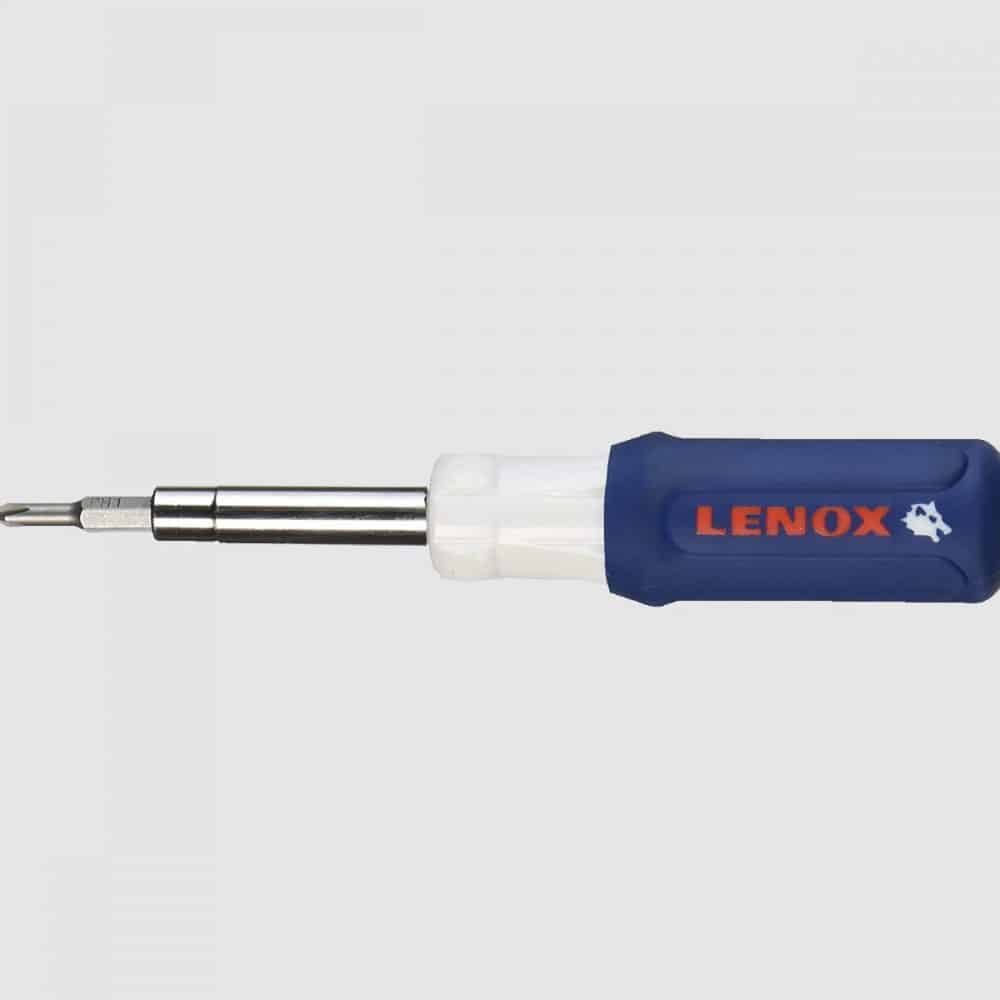
Best Tool for Building a PC: LENOX 6-in-1 Screwdriver
If there’s one item to add to your basket before your PC purchase, it’s this fantastically cheap multi-purpose screwdriver.
While I know there’s a lot of people out there looking for the best screwdriver set for computers and PC build, the truth is buying a full toolkit is overkill.
What kind of screwdriver do you need for PC building?
A no 2 Philips screwdriver will cover 90% of what most builds need.
That said, it’s helpful to have a no 1 (smaller head) variant for the occasional screws that are a little tighter.
I like the LENOX because it is (surprisingly) in the same price bracket as a single-type screwdriver, yet comes with 6 different heads (without a reduction in quality).
Overall, this one is a bit of a no-brainer.
Not only is it great to have the 2 Philips head types when setting up your PC, but getting the other 4 screwdriver types is a nice addition for future DIY projects given they come at no cost.
At its low price-point, this is without a doubt the best tool for PC building.
Best Anti-Static Wristband for PC Building: Rosewill Anti Static Wrist Strap
An anti-static wrist strap is a cheap, easy way to ground yourself and remove the risk of static interference when handling your pricey PC parts.
I recommend the Rosewill band – > The cheapest on the market that has widespread usage. There’s no need to overcomplicate a simple product, this is all you need.
Do you need an anti-static wristband to build a PC?
The short answer is no, but it’s recommended.
This is a popular product amongst tech builders for a reason: for a tiny price, you are avoiding the risk of static damage to items you spend big money on.
You’ll then have the band for all future upgrades/builds.
Alternatively, you can ground yourself manually every few minutes; which will cover most of the risk if you’re careful.
Thermal paste is an important part of the PC building process.
It is what allows the smooth transition of heat from the CPU to the accompanying CPU cooler. Do not start your PC without first having applied thermal paste.
Most CPUs or stock coolers usually come with enough paste for at least one application.
It’s worth checking what with the one you’re purchasing. If it is included then it will likely do the job just as well as Noctua so this is completely optional.
I (and many other builders) like to pick up some paste just in case:
Thermal paste isn’t included with your CPU
You need to re-apply the paste after a sub-par first attempt
You do not need to buy an expensive/high-volume tube of paste.
The Noctua NT-H1 paste ticks the boxes perfectly and is, in our opinion, the best thermal paste for PC building today (being one of the cheapest on the market, with enough volume for a few applications and widely used/available).
The above 4 items are the best tools for building a PC. We’ve just included a couple of extra optional small items that we think may be valid for some of your setups.
Those (like myself) who like to have more easily available ports on their desk – as it can be a pain to reach behind the PC if your front I/O ports are out.
This Anker offering is one of the best USB hubs for a PC setup.
It ticks all the right boxes: low in price, sturdy/attractive design, wide usage, and USB 3.0.
The NZXT Puck is essentially a magnetic stand to stick to the side/front of your PC case (or another magnetic surface if your PC isn’t).
It sounds simple, but it’s a surprisingly effective/aesthetically pleasing way of storing your headphones.
And the puck is actually in two parts, so you can choose to separate them and use the other piece for say, a game controller.
The slight crevice around the side of the puck also allows you to have some neat cable management for your accessories on the front side of your PC (something that is usually lacking in setups).
It’s by no means required for your build, but neatly storing your expensive PC headphones is something that is often overlooked, so a product to do it stylishly is one we’d recommend.
Kaelum Ross, BSc is the Lead Writer at What in Tech and a leading authority in PC hardware and software. With a career as a senior IT professional, Kaelum has led multi-million dollar projects covering everything from bespoke software development to complex Windows hardware upgrades. Today, Kaelum uses his expertise to serve What in Tech's readers and has been featured in numerous global publications including New York Magazine and Lifewire.
Thanks for checking in to our Prime Day 2020 guide. Prime Day is now over until 2021, so come back to this page then when we’ll update it with the best deals next year.
Best Prime Day Amazon tech deals
Prime Day is wrapped up now until 2021, we’ll see you then!
Do you need Amazon Prime to get Prime Day deals?
Yes, but in 2020, Amazon offers new users a 30-day free trial (check the links below to see if the offer is still available).
Should you wait for Black Friday/Cyber Monday for tech deals?
Although Black Friday and Cyber Monday are historically larger events, we don’t expect many tech users to gain enough of a discount to warrant waiting several more weeks.
When you read forums and listen to Reddit posts, there will always be someone to say “if you just wait X months, it will be cheaper”.
But this is always the case with every sale! You can always wait longer and get things cheaper.
But Prime Day will undoubtedly be a great chance to pick up good tech deals, so if you want something soon, we recommend making this your time to do it.
Kaelum Ross, BSc is the Lead Writer at What in Tech and a leading authority in PC hardware and software. With a career as a senior IT professional, Kaelum has led multi-million dollar projects covering everything from bespoke software development to complex Windows hardware upgrades. Today, Kaelum uses his expertise to serve What in Tech's readers and has been featured in numerous global publications including New York Magazine and Lifewire.
Want to stop a Steam update that will inevitably slow your internet speed?
Perhaps a new “fix” is known to crash the game and you want to hold off until the devs resolve?
Whatever the reason, we’ve created a fast guide on the options you have to disable auto-updates on Steam.
Quick note before we start: Steam auto-updates by default for a reason. Which is why they make it close to impossible to fully stop.
For the most part, new versions will fix issues or add features, so only disable updates if you have a reason to (we only recommend this for single player games).
Table of Contents
How to Turn Off Auto Updates on Steam for Specific Games
To stop Steam from updating games one at a time, start at your Steam library and right-click the game in question and click “Properties”.
Once the window opens, go to the “Updates” tab and you’ll see an “Automatic updates” dropdown box.
Set it to “Only update this game when I launch it” as below.
Steam does not give you the option to completely disable auto-updates so this is the best you can do within the app.
If you want to then play a Steam game without updating, your best option is to play in offline mode.
How to Turn Off Auto Updates on Steam for All Games
Unfortunately, there isn’t a supported way to do this.
But below are the closest methods found.
Option 1 – Download Steam Games at Certain Times
If you’re doing this because you don’t want games downloads affecting your broadband speeds, you can schedule Steam updates.
Click “Steam” in the top left corner and then “Settings”
Then go to the “Downloads” tab and you will see an option to set a time window for Steam updates as below:
If you really want to ensure Steam doesn’t update games, you can set the schedule to something like 4-5am and then make sure Steam is off or in offline mode during that period/when you play games.
Option 2 – How to Limit Steam Download Speeds
Another effective way to deal with Steam slowing down your internet is to set a Steam Bandwidth Limit.
Going to the same settings menu as option 1 above (Steam – > Settings – > Downloads) you can easily set a download limit for Steam as below:
How to Access Previous Versions of a Steam Game
Some games allow you to play older versions on Steam.
To do this, once again right-click on a game in your Steam library and click “properties”.
Go to the “Betas” tab and click on the dropdown box.
If there are other versions available, simply click on the one you want and Steam will download that version.
(Our example uses Super Meat Boy, which uses an older version for speedrunners).
Kaelum Ross, BSc is the Lead Writer at What in Tech and a leading authority in PC hardware and software. With a career as a senior IT professional, Kaelum has led multi-million dollar projects covering everything from bespoke software development to complex Windows hardware upgrades. Today, Kaelum uses his expertise to serve What in Tech's readers and has been featured in numerous global publications including New York Magazine and Lifewire.
Whether you’re just curious or trying to find recent purchases for a refund, Steam has a very simple way to check when you purchased a game (and how much it cost).
Check Steam Purchase History Steps
Step 1 – Login to your account and wait for the main screen to pop up.
Once there, click on your profile name in the top right corner and a small drop-down box will open below it as per the screenshot. Click “Account details”.
This will take you to your main account details page.
From here simply click “View purchase history”.
And that’s it! You should then see a list of your entire purchase history since the account started.
This will show you when you got a game, how much it was and any refund details if applicable (also covers Steam wallet purchase history).
Can’t view Steam purchase history?
You should be able to see every game attributed to your account no matter how old on this menu.
If that’s not the case and you need to know, your best bet is to contact Steam support.
See total amount spent on Steam
If you want to depress yourself by knowing how much money you’ve spent in total on Steam, they added a feature for this a little while ago.
Kaelum Ross, BSc is the Lead Writer at What in Tech and a leading authority in PC hardware and software. With a career as a senior IT professional, Kaelum has led multi-million dollar projects covering everything from bespoke software development to complex Windows hardware upgrades. Today, Kaelum uses his expertise to serve What in Tech's readers and has been featured in numerous global publications including New York Magazine and Lifewire.
A battle that has raged for decades. “Should I build a PC“ vs “should I buy a pre-built PC”, I hear you debating to yourself.
Trust me, we’ve all been there, and you’ll hear strong arguments on both sides of the fence; everyone has an opinion on this.
It may seem like a difficult decision to commit to when there are very contrasting views available. What’s more, if you’ve read/heard someone say there is a definitive answer to this question, they’re lying.
However:
We can easily find the answer that is right for your circumstances.
Today, we’re going to breakdown the build vs buy questions and get the answer right for you.
Let’s start with the obvious one:
Is it cheaper to build or buy a gaming PC?
Building is (usually) cheaper.
“How much cheaper is it?” I hear you ask: typically in the range of a 10-20%, sometimes more. Due to the lack of manufacturer assembling the PC parts, there is no “middle-man” trying to profit from the build service.
The cost savings become more impactful as you reach higher price points, in fact, if your budget is very limited (say a couple of hundred dollars) a pre-built will very likely work out similar in price. Here’s a graph to represent, because who doesn’t love a graph!
However:
It’s worth noting that this isn’t always the case. Companies can also get great wholesale discounts on PC components that drive their pre-build units down, you may also run into individual parts costing you more than they usually would during exceptional periods of certain low supply or high demand.
There are a bunch of articles titled “why buying a pre-built PC is cheaper than building one yourself”.
You should know nearly these of all originated in 2018 when GPU prices spiked dramatically due to cryptocurrency mining and that this information is outdated.
PC hardware manufacturers right now are healthily competitive and prices for components (particularly CPUs and GPUs, the two largest expenses) are looking a lot better than a couple of years ago.
By all means, compare the build you’re looking at if you want to be sure on which is better (if a pre-built option is available), but as a rule of thumb: self-built > pre-built for your wallet. If your principle concern is cost/maximizing a certain budget for the best performance, get building!
Time is money
Sure, you can probably save money by building a PC.
But what about the time spent?
It will likely take you 5-10 hours to put your first build together, you need to:
Identify the parts you want.
Confirm that they are all compatible/complementary (size, power, the motherboard isn’t going to bottleneck the CPU, etc.).
Watch some build tutorials.
And of course, the assembly itself (including OS installation).
If you value your time per hour at a certain monetary level, there will be a point where buying a pre-build becomes more “valuable” than a self-built PC.
Many who enjoy the build process would argue that this time isn’t work so it’s a false equivalency, but what do you think?
If this is a busy time in your life and you were looking for a gaming PC to use the few spare hours you do have for high-quality entertainment, then you should look at a pre-built.
After all, the cost you pay on top is for convenience. Similar to heading to your local coffee shop for that quick latte (where are the “self-built vs pre-built coffee” articles!?)
Perhaps the thought of doing the above task list is stressing you out (or not exciting you in the slightest). If that’s the case, look at a pre-built.
Your budget vs your expectations
Last point on the money topic, what are you looking to get out of your build for your budget?
Let’s say you have a strict limit of $700:
Do you want the PC to run Red Dead Redemption 2 and Far Cry 5 at an acceptable framerate/resolution?
Or are you looking for a computer that could manage Fortnite, League of Legends, Fallout 4, and other slightly older, less graphic-intensive games?
If the latter, you’ll have the flexibility to buy a pre-built if you prefer.
If the former, you need to squeeze your cash to its maximum potential and will likely need to build yourself.
Now that we have the money question out of the way, let’s look at some others:
Why you should build your own PC
The joy of the build
You’ve just finished putting all of your parts together after hours of assembly, you press the power button…
… and you hear the whir of the fans and the lights of the case come to life – Feels like magic!
Aside from the cost, this is what really motivates people to build – there is a certain rush to knowing you put the machine together yourself and for many (myself included) this alone is worth the additional time investment.
Hone your skills
It may not be hard to pick up, but building a PC is not something everyone knows how to do, and it’s very freeing knowing for yourself first hand that it’s not that hard.
Not only does building a PC now set you up for being able to do other builds further down the line, but once you know how everything fits together (how your RAM connects to your motherboard, how to screw your SSD into the case, etc.), you’ll be in a great position to upgrade parts in the future.
If you’re serious about gaming you’ll likely want to upgrade in 1-3 years time (e.g. GPU) so this will come in handy sooner than you think.
Not to mention the bragging rights of having a PC that you’ve built yourself. Just be careful not to be too proud of your accomplishment or you’ll end up being tech support for all of your friends and family!
Choose your destiny
When you think of your dream PC, do you have something very specific in mind?
Well, you might have a problem if you wanted to buy that pre-built (other than your brave design choices).
Pre-built PCs will usually have a limited amount of configurations available.
This isn’t just aesthetic, you’d be limited in what parts you want to pick in terms of specification too.
What about Operating System? Perhaps you want Linux or something less standard?
OS will nearly always be Windows for pre-builts (and may also come with undesired additional software (i.e. bloatware) that will slow your PC down).
There are some companies out there that will effectively build anything for you if you provide them the shopping list, but these services are going to come with a much higher premium.
In addition, if you’re the sort of person who likes to customize often, it’s worth bearing in mind that the warranty of a pre-built PC will likely be void if you tamper with anything (though I expect a majority of you would not upgrade your PC over the warranty period anyway).
If your heart is set on a unique configuration, I push you towards building yourself.
Why you should buy a pre-built PC
The pain of the build
You’ve just finished putting all of your parts together after hours of assembly, you press the power button and…
…you hear nothing.
This happened to me on my first ever build (many years ago…) it was an easy problem to fix but that pit-in-stomach sensation is not great!
If you want to build a PC, you should know it isn’t hard and you shouldn’t be intimidated, but it is certainly still possible to make mistakes.
If you’re buying a pre-built, there is a comfort knowing you’re purchasing a tried and tested product with no risk of incompatible parts or incorrect setup.
What’s more, building your own PC puts you at the risk of damaging the parts (perhaps you bend a motherboard pin or something is hit with static electricity), you’ll have a hard time getting any support/warranty claims if something like this happens (again, these things are unlikely if you’re careful, but they’re worth pointing out for those of you watching your blood pressure).
The warranty advantage
An often-overlooked factor is that your warranty for a pre-built PC is for the whole unit, not for individual parts.
Let’s say you’ve built your own computer:
6 months in, your PC starts to crash to the point where it’s unusable.
What do you do?
Rummage through google to see if you can identify the common symptoms of the crashing (if you’re lucky, you’ll find out).
If that doesn’t work, you’re going to have to obtain replacement parts to swap out one-by-one and identify which PC component is causing the issue.
Both of these take time (especially point 2) and aren’t fun.
On the other hand, your pre-built PC breakdown 6 months after purchase?
You send it back to the company and they’re obliged to take those steps for you.
Bear in mind that sometimes (but certainly not always), individual parts will have longer warranties, but don’t underestimate the convenience value of not having to troubleshoot the issues yourself. These problems can take a LOT of time to resolve.
Decision time
So, let’s summarize:
If you are not too interested in the process or are busy/value your time more than the cost savings you can get building yourself – then go and get yourself a shiny new pre-built PC!
Or:
If you are very keen on cost-saving and have a genuine interest in the process of building and developing a unique configuration, then look here everyone – we found ourselves a new PC builder!
Still on the fence? let me make one thing very clear:
Both options are great! Have you already spent multiple hours on this decision, anxious about making the wrong choice? If that’s the case: go with your gut.
Reading through the points here, which side aligns with you more? Does the thought of building fill you with excitement or dread?
My recommendation? This article likely comes across more in favor of building a PC, because it is.
I think if you’ve read this far, chances are you would probably get a kick out of the build process and have a skill you’ll take into the future, giving you more confidence for upgrades and troubleshooting problems (not to mention the joys of a more powerful PC for your budget!).
I’ll reiterate one last time: There is no “wrong choice”: pre-built or self-built, I promise you that you’ll have a great time investing in a new PC